USA Owned & Operated






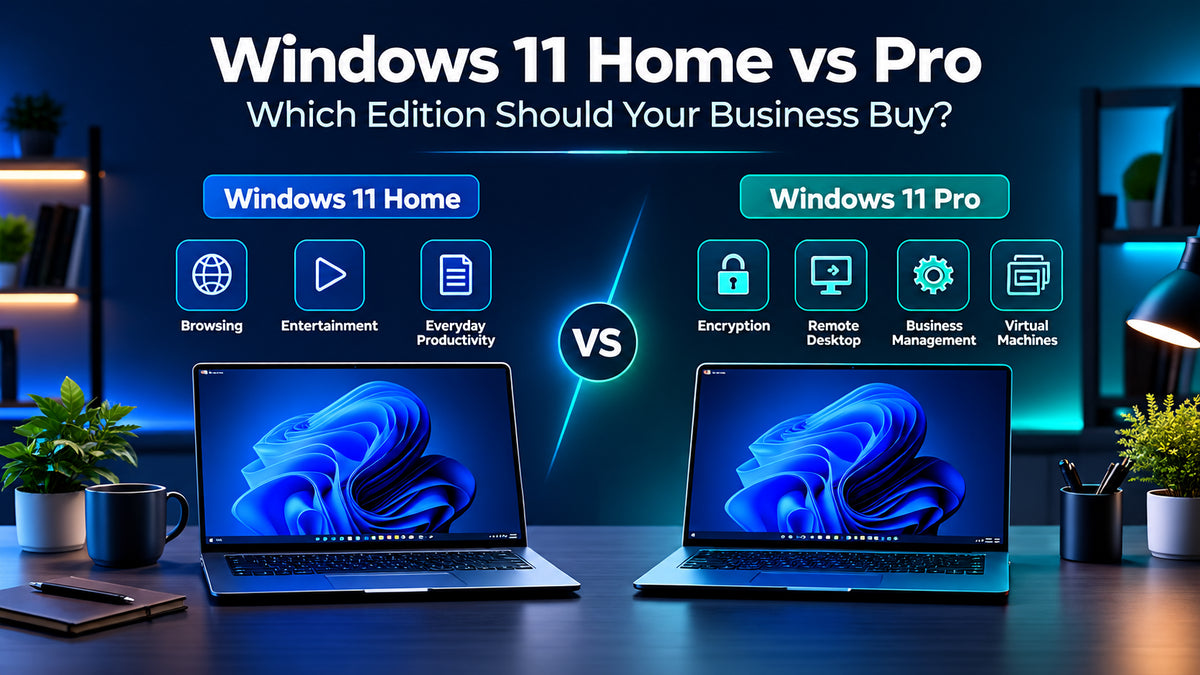
Windows 11 Home vs Pro for Small Business: Which Edition Should You Buy?
Product and feature information checked: August 31, 2026
Windows 11 Home and Windows 11 Pro look very similar during everyday use. Both can browse the web, run Microsoft Office, join video calls and handle normal home or office work. The buying decision changes when a PC must protect company data, accept an incoming Remote Desktop connection, join an organization’s domain or run built-in virtualization tools.
This guide compares Windows 11 Home vs Pro for small business buyers without treating every “professional” user as automatically needing Pro. The right edition is the least expensive one that covers the features you will actually use over the life of the computer.
Windows 11 Home vs Pro: the short answer
Choose Windows 11 Home for a personal or family PC that only needs everyday apps, web browsing, entertainment and standard built-in security.
Choose Windows 11 Pro for a company-managed PC, or whenever you need full BitLocker Drive Encryption controls, an incoming Remote Desktop host, Active Directory or Microsoft Entra ID join, Group Policy, Hyper-V or Windows Sandbox.
Pro is not automatically faster simply because it is the higher edition. Its value comes from additional security, management, networking and virtualization features. If you cannot identify a Pro-only feature that you need, Home may be the more economical choice. If the computer stores customer records, travels with an employee or must fit into managed business infrastructure, Pro is usually the safer purchase.
Windows 11 Home vs Pro feature comparison
| Feature or need | Windows 11 Home | Windows 11 Pro | Who should care? |
|---|---|---|---|
| Everyday Windows apps and gaming | Yes | Yes | Home users, students and gamers |
| Windows Security, firewall and Windows Hello | Yes, with hardware-dependent features | Yes, with hardware-dependent features | Everyone |
| Device Encryption | Available on supported hardware | Available on supported hardware | Buyers with portable devices |
| Full BitLocker Drive Encryption management | No | Yes | Businesses and users protecting sensitive data |
| Remote Desktop host | No; Home can still be a client | Yes | People who must connect into this PC remotely |
| Active Directory domain join | No | Yes | Organizations using Windows Server domains |
| Microsoft Entra ID join | No | Yes, with the relevant organization services | Cloud-managed businesses |
| Group Policy management | No | Yes | IT administrators applying consistent policies |
| Hyper-V | No | Yes, subject to hardware requirements | Developers, testers and IT professionals |
| Windows Sandbox | No | Yes, subject to hardware requirements | Users testing untrusted apps or files in isolation |
The two editions share the familiar Windows 11 experience. The difference is not that Home is a trial or cut-down operating system for basic tasks. Pro adds capabilities that matter when the computer becomes part of a managed workplace or needs advanced local administration.
Five reasons Windows 11 Pro may be worth buying
1. You need full BitLocker controls
Microsoft distinguishes between Device Encryption and BitLocker Drive Encryption. Device Encryption is designed for simpler automatic protection and is available on a wider range of supported devices, including some running Windows Home. Full BitLocker Drive Encryption management is available on Pro, Enterprise and Education editions.
This distinction matters when a business needs to choose which drives to encrypt, protect removable drives with BitLocker To Go or manage recovery processes. Whatever edition you choose, store the recovery key safely. Microsoft states that it cannot recreate a lost BitLocker recovery key.
2. This PC must accept Remote Desktop connections
Windows 11 Home can be used to connect from the Home PC to a compatible remote computer. It cannot act as the host for an incoming Microsoft Remote Desktop connection. Windows 11 Pro can act as a Remote Desktop host.
This is useful when an owner or employee needs to reach an office PC from another location. Remote Desktop should be deployed securely; avoid exposing the default RDP port directly to the public internet. Use an appropriate VPN, gateway or managed remote-access design.
3. Your organization uses a domain or Microsoft Entra ID
Pro supports Active Directory domain join and Microsoft Entra ID join, while Home does not. These features allow a business to connect a PC to its organizational identity and management environment. They are especially relevant when employees require company credentials, centrally controlled access or standardized device configuration.
Buying Pro provides the Windows edition capability; it does not include Microsoft Entra, Microsoft Intune or Windows Server subscriptions and licenses that your deployment may separately require.
4. IT needs Group Policy
Group Policy lets administrators apply consistent security, networking and user settings across managed PCs. A very small business with one unmanaged laptop may never use it. Once several company computers must follow the same rules, Pro becomes much easier to justify.
5. You use Hyper-V or Windows Sandbox
Microsoft includes Hyper-V with Windows 11 Pro, Enterprise and Education. It is valuable for developers and IT professionals who need local virtual machines for testing. Windows Sandbox, also supported on Pro and higher editions, creates a temporary isolated Windows environment whose contents are discarded when it closes.
Both features have hardware requirements beyond owning Pro, including virtualization support. Check the processor, firmware settings, available memory and storage before buying an edition solely for virtualization.
When is Windows 11 Home enough?
Home remains a sensible choice when the PC is not centrally managed and none of the Pro-only features solve a real requirement. Typical examples include:
- A family computer for browsing, streaming, schoolwork and personal documents
- A gaming PC that does not need Hyper-V, Windows Sandbox or business management
- A personal laptop that uses third-party remote-support software and does not need to host Microsoft Remote Desktop
- A sole trader’s basic computer with no domain, Entra join or Group Policy requirement
Some Windows 11 Home devices support Device Encryption, but availability depends on the hardware and configuration. Do not assume that every Home PC has the same encryption controls as Pro. Check Settings > Privacy & security > Device encryption on the actual device before relying on it to protect business data.
If Home meets your needs, compare the current Windows 11 Home license for one PC. If you already know the computer will be managed for work, buying Pro at the start can avoid an edition upgrade later.
Which edition should you buy for your situation?
Choose Windows 11 Home
- Personal and family computers
- Normal web, email and Office use
- Gaming without Pro-only tools
- No incoming Remote Desktop hosting
- No company domain or centralized policy
Choose Windows 11 Pro
- Company laptops carrying sensitive data
- Remote Desktop host computers
- Domain-joined or Entra-joined devices
- PCs managed with Group Policy
- Hyper-V or Windows Sandbox users
| Buyer | Likely choice | Reason |
|---|---|---|
| Home user or student | Home | Everyday apps and built-in security without paying for business management tools. |
| Gamer | Home, unless Pro features are needed | Pro is not required merely to play games. |
| Freelancer with one simple PC | Home or Pro | Home can be enough; choose Pro if full BitLocker or Remote Desktop hosting matters. |
| Small company with managed laptops | Pro | Domain or Entra join, Group Policy and stronger administrative controls justify Pro. |
| Developer or IT technician | Pro | Hyper-V and Windows Sandbox are practical testing tools. |
| Employee who only needs to connect to a company server | Possibly Home | Home can act as a Remote Desktop client; Pro is required when this PC must be the host. |
Check compatibility before buying either edition
Windows 11 Home and Pro use the same minimum hardware baseline. Microsoft lists a compatible 64-bit processor with at least 1 GHz and two cores, 4 GB RAM, 64 GB storage, UEFI firmware with Secure Boot capability, TPM 2.0, DirectX 12-compatible graphics and a suitable display. These are minimums, not a recommendation for comfortable business multitasking.
- Run Microsoft’s PC Health Check. A product key cannot make unsupported hardware compatible.
- Confirm TPM 2.0 and Secure Boot capability. They may be present but disabled in firmware.
- Check the current Windows edition. Open Settings, select System, then Activation.
- Back up important files. Do this before changing editions or reinstalling Windows.
- Confirm the license terms and device count. Both live YourOfficeHub listings currently describe a digital license for one PC or device; review the product page again before ordering.
Windows 11 Pro does not turn an ordinary computer into a Copilot+ PC. Microsoft defines Copilot+ PCs as a separate hardware class with a compatible neural processing unit capable of 40+ TOPS, at least 16 GB RAM and 256 GB storage. Feature availability can also depend on hardware, region, Windows version and account. Choose Home or Pro for the edition features you need, not because the word “Copilot” appears in a product name.
Can you upgrade Windows 11 Home to Pro later?
Yes. Microsoft provides a supported edition-upgrade path from Windows Home to Windows Pro. On an activated Windows 11 Home PC, open Settings > System > Activation. You can then change the product key or follow Microsoft’s Store upgrade route.
Before entering a key, confirm that it is intended for the edition upgrade and licensing channel you are using. A full Pro license and a Home-to-Pro upgrade offer are not always interchangeable. Back up important data, make sure Windows Home is activated and keep purchase records.
If you already know you need Pro, review the current Windows 11 Pro license for one device. For a side-by-side look at both live listings, browse the Windows 11 collection.
Ready to choose your Windows 11 edition?
Buy Home when you need a straightforward personal operating system. Choose Pro when the PC must protect business data, host Remote Desktop, join company infrastructure or run Microsoft’s built-in virtualization tools.
Frequently asked questions
Is Windows 11 Pro faster than Home?
Do not buy Pro as a general speed upgrade. The main differences are business security, management, networking and virtualization features. Processor, memory, storage, drivers and workload have a much larger effect on everyday performance.
Does Windows 11 Home have BitLocker?
Windows Home does not include the full BitLocker Drive Encryption management experience. However, Microsoft says simpler Device Encryption is available on a wider range of supported devices, including some running Home. Check the actual computer rather than assuming encryption is present.
Can Windows 11 Home use Remote Desktop?
Home can be used as a client to connect to a compatible remote PC. It cannot serve as the host for an incoming Microsoft Remote Desktop connection. The host PC needs Windows Pro, Enterprise, Education or a supported Windows Server edition.
Do I need Windows 11 Pro to run Microsoft Office?
No. Compatible Microsoft Office editions can run on Windows 11 Home or Pro. Windows and Office are separate products, so confirm the requirements and license for each one.
Does Windows 11 Pro include Microsoft Office or Microsoft 365?
No. Buying Windows 11 Pro does not by itself include a paid Microsoft Office or Microsoft 365 license. Purchase the productivity software separately if you need it.
Is Windows 11 Home enough for a small business?
It can be enough for a simple, unmanaged PC that does not need Pro-only features. Pro is the stronger choice for company laptops, remote-access hosts, domain-joined devices, centrally managed PCs and systems that handle sensitive business data.
Can I upgrade from Home to Pro without buying a new computer?
Yes, provided the PC supports Windows 11 and Home is activated. Microsoft supports changing editions through Activation settings using an appropriate Pro product key or Store upgrade. Back up your data and confirm the licensing route before starting.
Does Windows 11 Pro make my computer a Copilot+ PC?
No. Copilot+ PC capabilities depend on qualifying hardware, including a 40+ TOPS NPU, plus other requirements. Installing Pro on a conventional computer does not add that hardware.
Official Microsoft references
- Compare Windows 11 Home and Pro
- Compare Windows 11 business editions
- Device Encryption in Windows
- BitLocker Drive Encryption
- Enable Remote Desktop on a PC
- Hyper-V overview
- Windows Sandbox
- Upgrade Windows Home to Pro
- Windows 11 system requirements
- Copilot+ PCs vs Windows PCs
Features may depend on hardware, Windows version, region, account, network configuration and separately licensed services. Product activation and use rights depend on the license supplied with the purchase. This article is practical buying guidance, not legal advice.